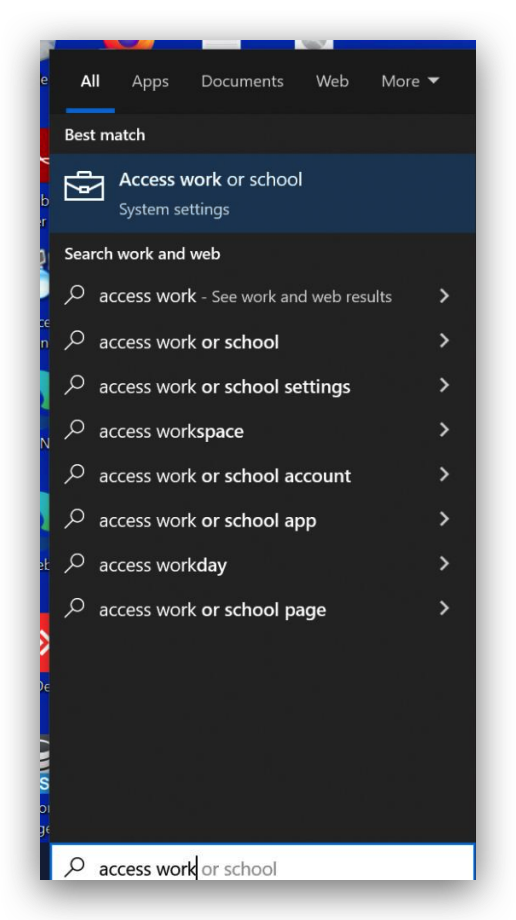
- Search “Access work or school” in the Start Menu; select the
option shown below:
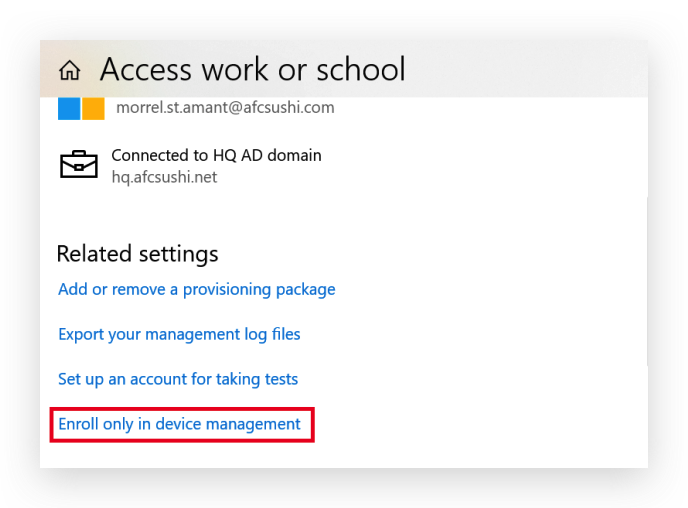
- In the new window, select “Enroll only in device management”
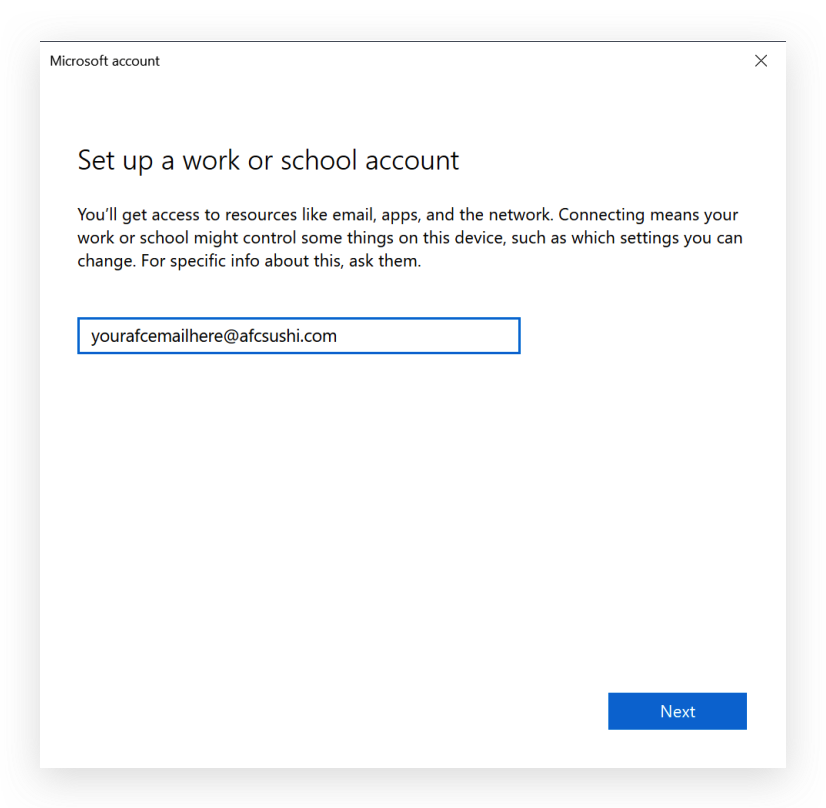
- Enter your AFC email address in the next field; you will receive an error message when pressing “Next” – this is fine.
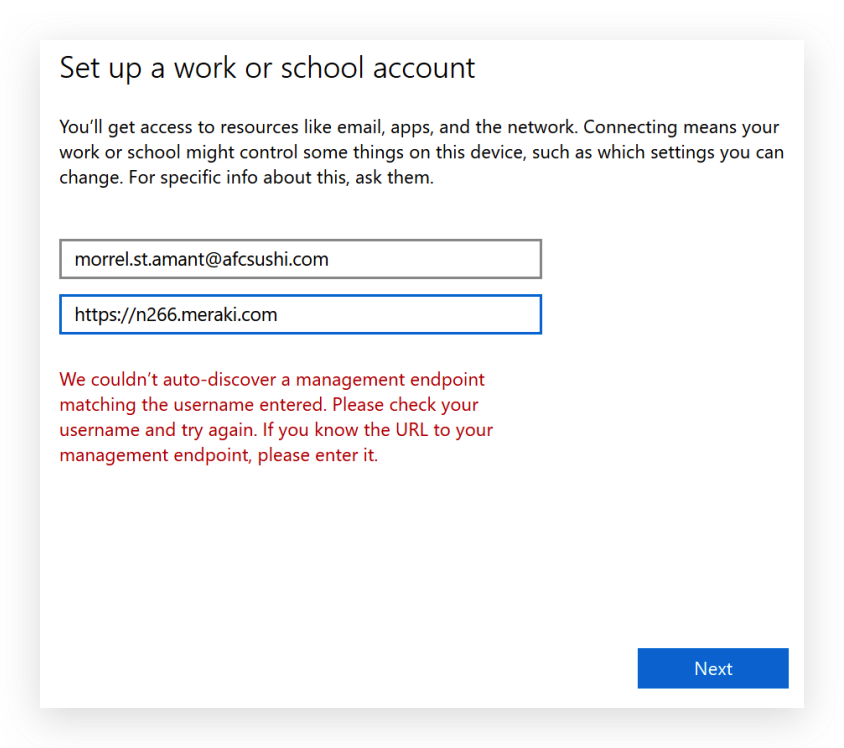
- Enter the address for AFC’s MDM server (https://n266.meraki.com) in the new field below your email exactly as shown here , then click “Next”:
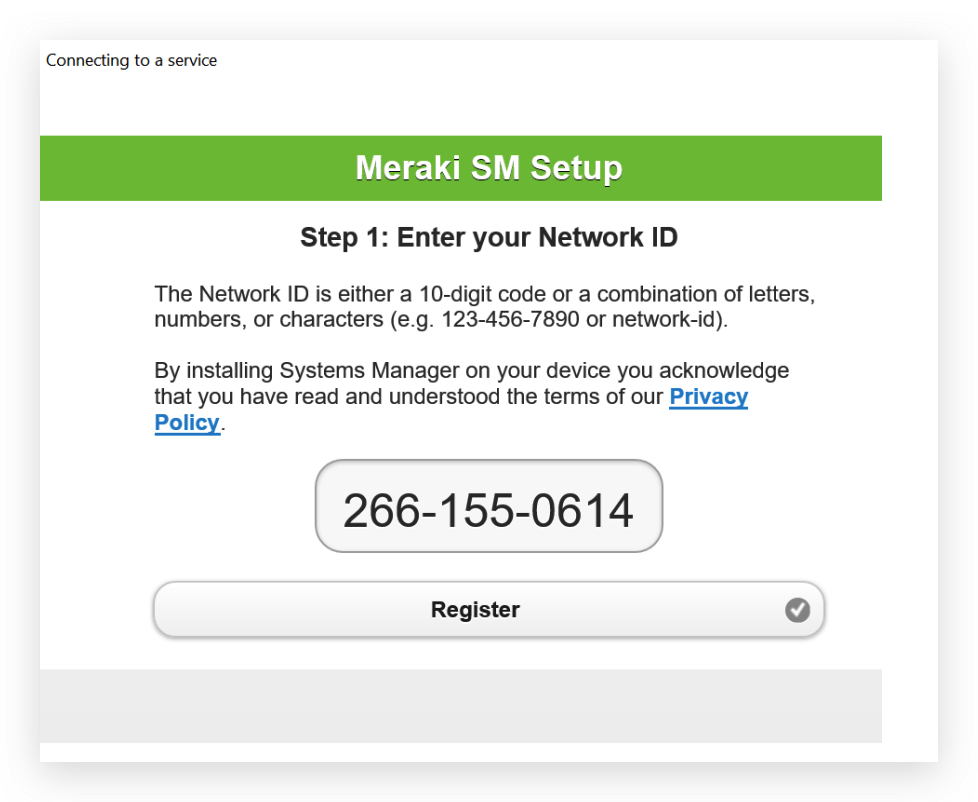
- Enter the network ID as shown below (please include the dashes) and click “Register”:
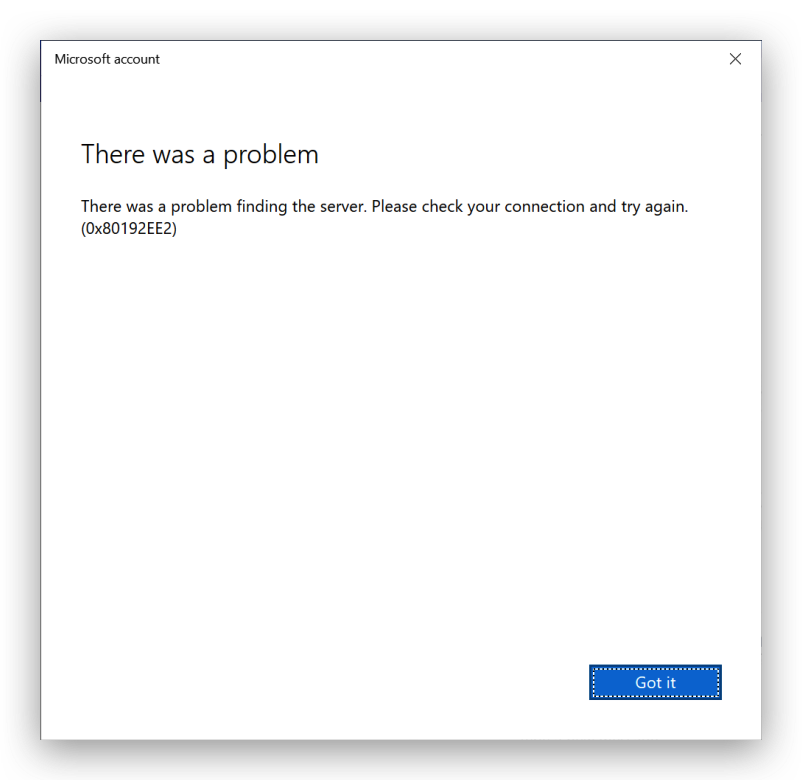
- If you receive the following error, click “Got it” and repeat steps 1-5:
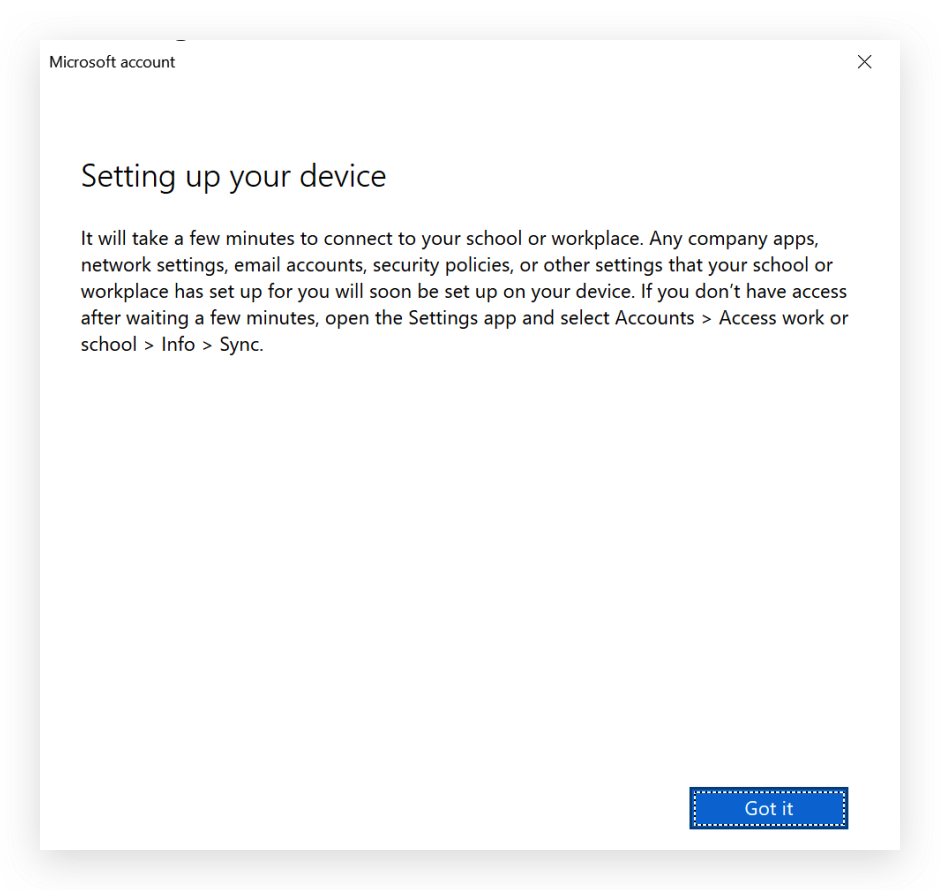
- If your device registration was successful, you should receive the following:
- After clicking “Got it”, you should see the following in the original "Work or School” window:
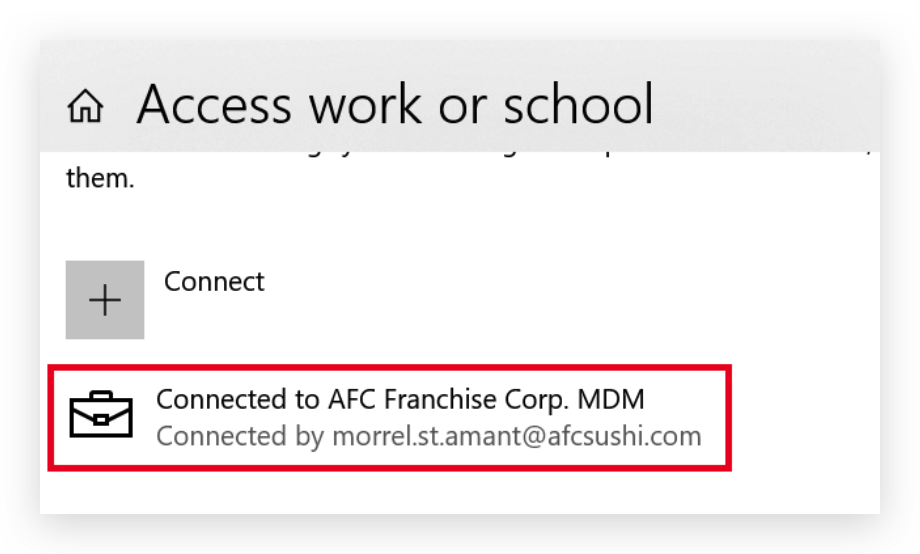
- Your device is now fully enrolled in AFC’s MDM system and can receive configuration updates as necessary.
Comments
0 comments
Article is closed for comments.